¶ Introduction
In order to make the Edge Device collect data for PlexusGrid, you need to create a dataspace and connect the device to it.
Don't have a dataspace yet?
¶ Prerequisites
- The Edge Device must be connected to an inverter, a power supply and (optionally) a network (Setup Guide)
- Access to an internet browser via a computer or mobile phone
- Dataspace ID and Connection Keys
¶ Access the Edge Device Web Page
- Turn on the Edge Device
If the Edge Device does not have an internet connection when it is turned on, it will automatically create a hotspot
-
Open an internet browser on a computer or mobile phone
-
Type the URL found on the Edge Device into the browser address bar and press Enter. This will take you to the page where you will establish the connection between the Edge Device and PlexusGrid
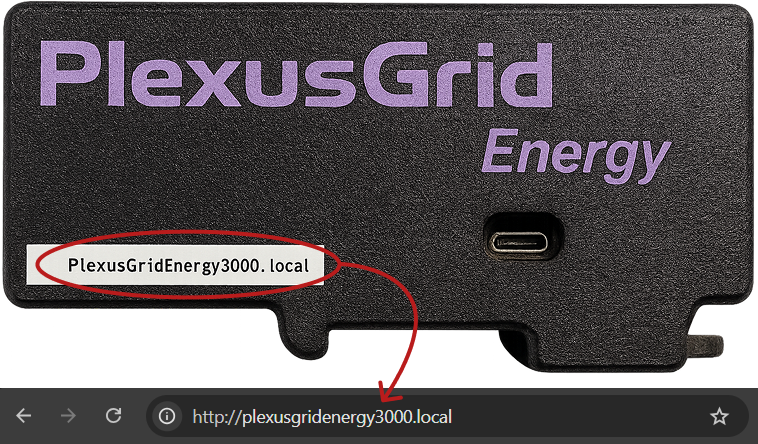
The link will take you to the following web page
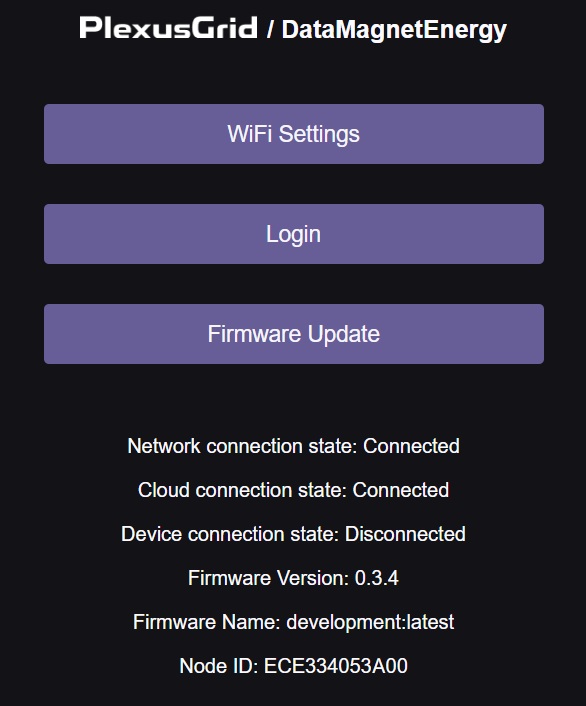
Here, you can see some information about the device's current state along with 3 buttons:
-
WiFi Settings → Manage the wireless internet connection. You only need this if you are not using Ethernet for your device.
-
Login → Establish the connection between the Edge Device and a PlexusGrid dataspace.
-
Firmware Update → Update the device to the latest firmware.
¶ WiFi Settings
In case the Edge Device is not connected to a network via Ethernet, you need to set up a WiFi connection on the device.
Click the WiFi Settings button, which leads to the following page
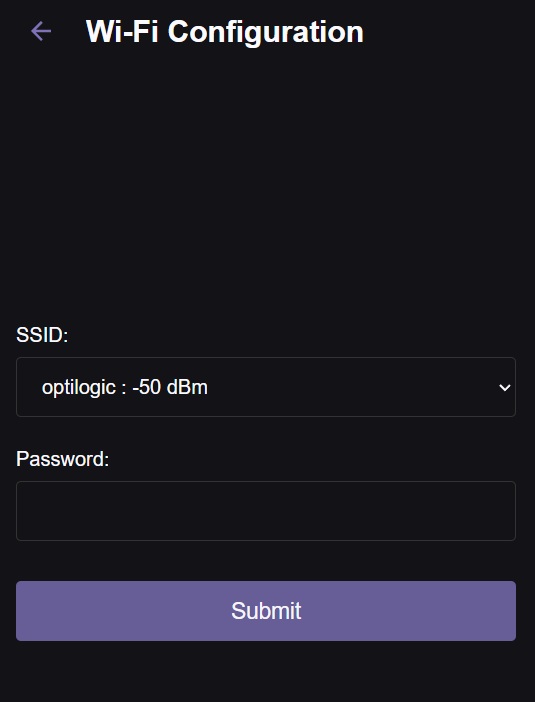
Do the following:
- Select your WiFi SSID (the name of your WiFi) from the dropdown menu.
- Enter the WiFi password.
When clicking "Submit" your device will have internet access.
The Edge Device must be connected to the same WiFi as the computer/mobile phone you are using for the setup.
¶ Login
To establish a connection between the Edge Device and a PlexusGrid dataspace, click the Login button which leads to the following page
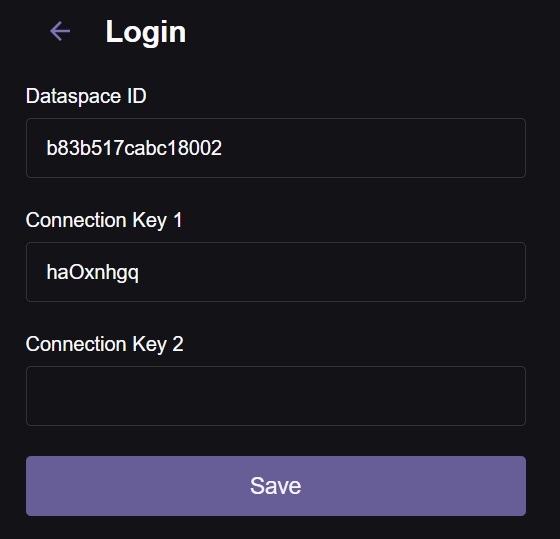
If you did not save the dataspace credentials when you created the dataspace, you should also have received them via e-mail
Enter the Dataspace ID, Connection Key 1 and Connection Key 2 in the appropriate input fields and click Save.
You will now be asked to select a Device Type and Device SlaveID.
Device Type: For example "Deye Inverter"
Device SlaveID: For a Deye Inverter the default is "0", which means Modbus is being used.
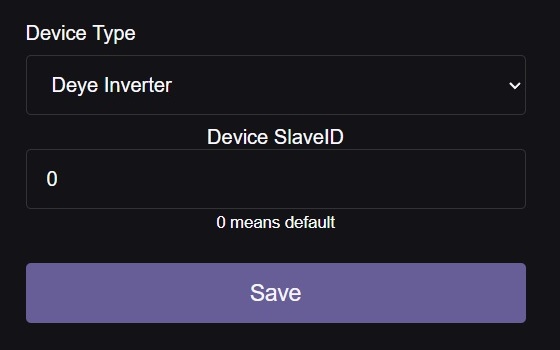
Finally, click Save and (on the Home Page) you should see that everything is connected 🎉